Summary
A customizable Arma Reforger pause menu featuring server branding, announcements, persistent rules agreement, community links, console QR codes, and controller navigation.
Description
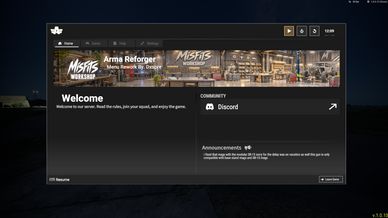
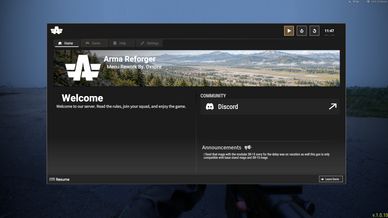
MWM Pause Menu Rework gives your Arma Reforger server a redesigned pause menu with community branding, server information, rules, community links, and live Discord announcements.

YOU MUST START THE SERVER AND LET THE JSON LOAD BEFORE EDITING IT AND RESTART SERVER AFTER CHANGES ARE SAVED -p.s I like to use LoafHosts Because there file explorer is very friendly

Get 10% Off when you use my code https://loafhosts.com/r/dxspre

Server owners configure the menu through JSON files in their server profile. The server distributes those settings to connected players, giving everyone the same information and branding.
- Custom Home page with your server name, slogan, welcome message, logo, and background banner.
- First-visit rules agreement that remembers each player’s acceptance on that server. Players can review the rules later through Help → Server Rules.
- Community links that open your Discord or website on PC.
- Console QR cards that let Xbox and PlayStation players scan your community links with their phones.
- Optional website support that lets you hide the website button and QR card together.
- Live Discord announcements that display the latest readable post from your chosen channel.
- Mouse and controller navigation, including visible selection feedback and scrolling rules.
- Organized Home, Game, Help, and Settings tabs, with access to supported game menus and actions.
To set up the mod on your server:
- Add MWM Pause Menu Rework to your server’s mod list.
- Start the server or scenario once to generate its configuration files.
- Open MWM/PauseMenu inside the server’s active profile directory. In scripts and logs, this location appears as $profile:MWM/PauseMenu/.
- Open Home.json to configure your branding, welcome text, community links, and rules.
- Read the generated Home-Setup.txt for detailed field descriptions and available rule icons.
- Keep "Version": 1 and set "Enabled": true to apply your Home page settings.
- Save your changes and restart the server or scenario. JSON configuration loads at startup.
To customize the Home page:
- Set ServerName, Slogan, and WelcomeText to your server’s information.
- Set LogoTexture and BannerTexture to the full resource names of your imported .edds textures.
- In Workbench’s Resource Browser, right-click each imported texture and choose Copy Resource Name(s). Paste the complete {GUID}path/to/texture.edds value into the appropriate JSON field.
- Use a square logo, such as 512 × 512, to match the Home menu’s logo slot.
- Publish your logo, banner, and QR textures in a content pack and include that pack in the server’s mod list.
- Edit the first CommunityButtons entry for Discord and the second entry for your website.
- Set each entry’s Url to the appropriate community link.
- Set the website entry’s Enabled value to false to hide its PC button and console QR card.
- Add your server rules to the Rules array. Each rule supports Enabled, Text, and IconImage.
To configure console QR codes:
- Generate a QR code for each community link.
- Import the QR images into your server’s content pack.
- Paste each image’s full resource name into the corresponding community entry’s QRCodeTexture.
- For .edds QR textures, leave QRCodeImage empty.
- Make sure each QR code points to the same destination as its entry’s Url.
- Scan both codes with a phone before publishing your content pack.
To connect Discord announcements:
- Invite MWToolchain to your Discord server.
https://discord.com/oauth2/authorize?client_id=1566298170290479246

- Choose a text or announcement channel that @everyone can view and read.
- Give MWToolchain View Channel and Read Message History permissions in that channel.
- Enable Discord’s User Settings → Advanced → Developer Mode.
- Right-click your announcements channel and select Copy Channel ID.
- Open $profile:MWM/PauseMenu/Announcements.json on your Arma server.
- Paste the channel ID between the quotes in ChannelIdlocated in Announcements.json, then save the file.

  ChannelId": "YOUR_DISCORD_CHANNEL_ID"

- Restart the Arma server or scenario to load the channel setting.
- The shared announcement service retrieves the latest readable post and sends it to your server’s Home page.
- Announcement content refreshes automatically every 60 seconds by default. Allow approximately 1–2 minutes for Discord changes to appear.
- Discord pings are removed from the displayed text, and paragraph spacing is cleaned up for the menu.
- Each community uses its own channel ID while sharing the hosted announcement service..
License
Arma Public License Share Alike (APL-SA)